


Finding the right collaboration tool can transform how your team works. Whether you need streamlined communication, robust video conferencing, or tools to manage projects, platforms like Slack, Microsoft Teams, Zoom, and Discord offer distinct options. Here’s a quick breakdown to help you choose:
- Slack: Best for small teams and startups using multiple tools like Google Workspace or Jira. Focused on chat and integrations, starting at $7.25/user/month.
- Microsoft Teams: Ideal for enterprises using Microsoft 365. Combines chat, video, and file management with plans starting at $4/user/month.
- Zoom: A video-first platform with AI features for summarizing meetings. Great for large meetings and webinars, starting at $14.99/user/month.
- Discord: Suited for informal, voice-driven collaboration. Free tier supports unlimited users; Nitro plan costs $9.99/month.
Quick Comparison
| Feature | Slack | Microsoft Teams | Zoom | Discord |
|---|---|---|---|---|
| Primary Focus | Chat & Integrations | Meetings & Microsoft 365 | Video Collaboration | Voice & Community |
| Starting Price | $7.25/user/month | $4/user/month | $14.99/user/month | Free / $9.99/month |
| Max Meeting Size | 50 (Huddles) | 300 | 300+ (varies by plan) | 25 (Video) / Unlimited (Voice) |
| Free Plan | 90-day message history | Unlimited chat history | Unlimited meetings | Unlimited users |
| File Storage | 10GB–20GB per user | 1TB per user | 5GB (Basic) | 8MB–500MB |
| AI Features | Paid add-on | Paid add-on | Included | Limited (Bot-based) |
Each platform serves different needs. Slack excels in chat and integrations, Teams is perfect for Microsoft 365 users, Zoom is unbeatable for video meetings, and Discord is an affordable choice for informal communication. Test free plans to find the best fit for your team.
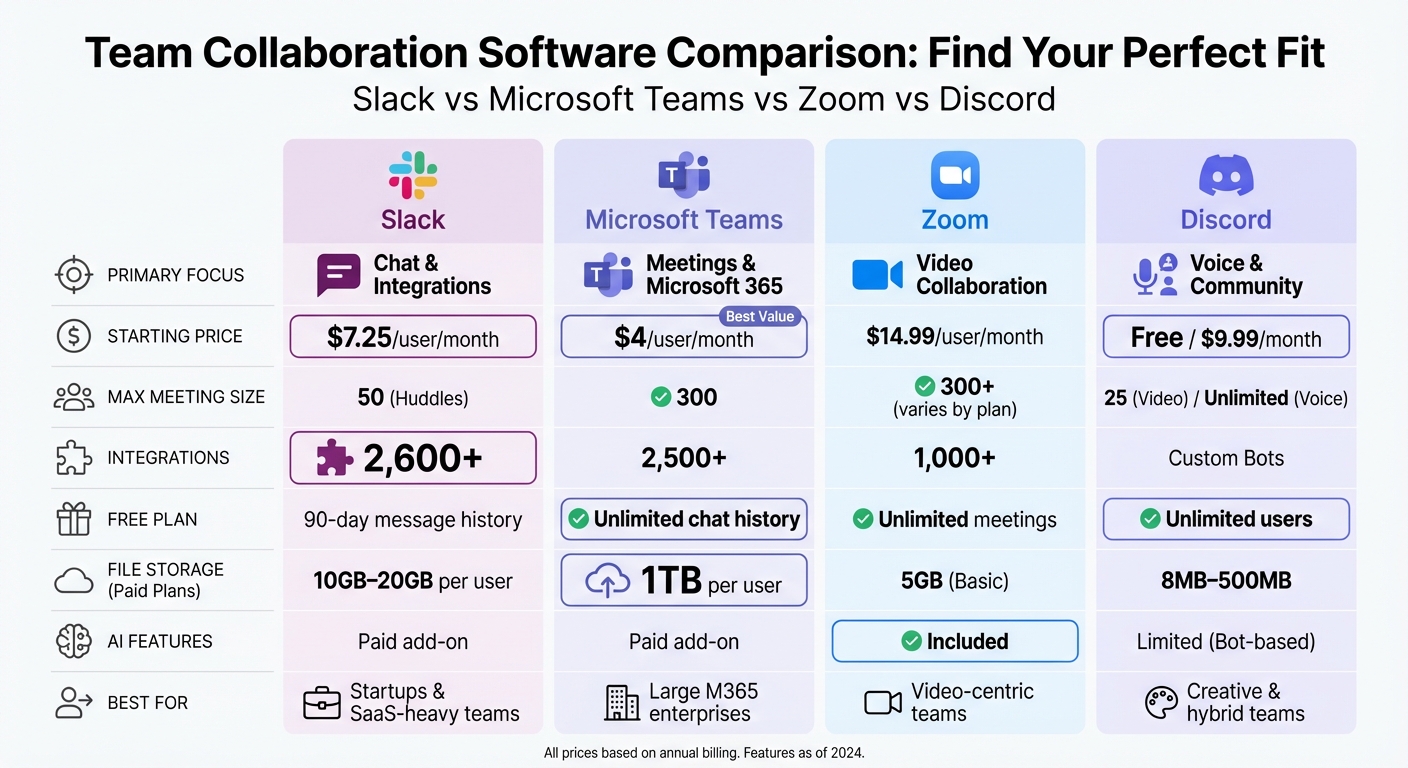
Slack vs Microsoft Teams vs Zoom vs Discord: Feature Comparison Chart
Slack: Features, Benefits, and Use Cases
What Slack Offers
Slack transforms workplace communication by organizing discussions into channels based on projects, teams, or specific topics. This approach replaces cluttered email threads with clear, searchable conversations. Channels can be public for company-wide transparency or private for confidential matters. With Slack Connect, you can collaborate with external partners, clients, or vendors in shared channels – no need to juggle multiple platforms, as everything stays in one easily searchable space.
One of Slack’s standout features is its 2,600+ integrations, connecting with tools like Google Workspace, Salesforce, Jira, and GitHub. These integrations create a centralized hub where updates, notifications, and workflows from your entire tech stack come together seamlessly. For added convenience, the Workflow Builder lets users automate repetitive tasks – such as onboarding, approval requests, or status updates – without requiring coding skills.
Slack AI takes productivity up a notch by summarizing lengthy threads, generating channel recaps, and delivering intelligent search results. This helps users save an average of 97 minutes per week by quickly surfacing relevant information from past conversations and files. For impromptu team discussions, Huddles provide lightweight audio and video calls with features like screen sharing and live captions – perfect for quick syncs that don’t require formal meetings.
The platform’s advanced search tools allow you to filter messages by user, date, channel, or keyword, making it 36% faster to retrieve information compared to traditional methods. Slack has also introduced Canvas, a feature for creating collaborative documents directly within the platform. These are ideal for project briefs, meeting notes, or sharing team knowledge.
"Slack’s advanced messaging features, comprehensive integration support, variety of helpful AI tools, and welcoming interface make it the business communication app to beat." – PCMag
With these capabilities, Slack becomes a go-to solution for teams that value fast, flexible, and integrated communication.
When to Use Slack
Slack’s features translate into clear advantages for teams. It’s particularly well-suited for startups, small teams, and organizations focused on chat-based communication. Its straightforward interface means teams can start using it in under 10 minutes, making it a great choice for fast-paced businesses without dedicated IT resources.
The platform shines for teams working with a variety of SaaS tools, as it’s designed to integrate across different systems rather than locking users into a single ecosystem. This makes it especially useful for agencies and service-oriented businesses that need to collaborate effortlessly with external clients.
Slack users report a 47% boost in productivity and 33% fewer meeting minutes. Sales teams, in particular, see a 14% increase in win rates, thanks to faster communication and better information sharing. It also supports asynchronous work, enabling distributed teams across time zones to stay aligned without requiring everyone to be online at the same time.
With 27,500+ five-star reviews on G2 and a 4.5/5 "Outstanding" rating from PCMag, Slack has established itself as a top choice for teams seeking real-time collaboration, robust integrations, and a user-friendly experience.
Microsoft Teams: Features, Benefits, and Use Cases
What Microsoft Teams Offers
Microsoft Teams brings together chat, video, and file management, all seamlessly integrated within Microsoft 365. One standout feature is the ability to edit Office files directly in Teams, which can save users 15–25 minutes each day. Conversations are organized into dedicated workspaces called Teams, which are further divided into channels. These channels can be public, private, or even shared with external collaborators. For video meetings, Teams supports up to 300 participants for sessions lasting up to 30 hours. Additional features like breakout rooms, live captions in over 30 languages, and built-in recording and transcription enhance its functionality.
The inclusion of Microsoft 365 Copilot takes collaboration to another level. This AI-powered tool can summarize meetings, suggest actionable tasks, and transcribe audio in real time. Most subscription plans also include 1TB of OneDrive/SharePoint storage, making file management straightforward with detailed permission controls. Plus, Teams integrates with Power Automate, enabling users to create workflows across apps without any coding required.
"Microsoft saw early on that an integrated hub bringing together persistent chat, files and videoconferencing was going to be the future of enterprise collaboration."
- Dux Raymond Sy, Chief Brand Officer, AvePoint
With more than 320 million daily active users, Teams has positioned itself as a leading collaboration platform. Its deep integration with Microsoft 365 and enterprise-grade security features – such as compliance with GDPR, HIPAA, and ISO 27001 – make it a trusted choice for businesses worldwide.
When to Use Microsoft Teams
Microsoft Teams is designed to meet the collaboration needs of diverse organizations. It shines in large enterprises, businesses already using Microsoft 365, and industries that require strict regulatory compliance, such as healthcare, finance, or government. Its structured hierarchy mirrors organizational charts, making governance and management more straightforward. For companies that prioritize formal, scheduled video meetings over casual, chat-based communication, Teams’ advanced video conferencing tools are a perfect fit.
Teams is especially useful for document-heavy workflows, allowing team members to co-edit Office files directly within the chat interface. Field workers, retail staff, and healthcare professionals can also take advantage of mobile-specific features like "Shifts" for managing schedules. For businesses already invested in Microsoft 365, Teams offers excellent value, with plans starting at $4.00 per user/month for Teams Essentials or $6.00 per user/month for Business Basic. The latter includes 1TB of storage and web versions of Office apps.
"Teams has emerged as a star product rather than an add-on that is bundled within a larger productivity suite."
- Raul Castanon, Senior Analyst, 451 Research
Users consistently praise Teams for its seamless integration with Microsoft 365 and its advanced video conferencing tools, earning it a 4.3/5 rating on G2 and 4.4/5 on Gartner Peer Insights. However, some users find the interface overwhelming and note that it may take time to adapt, particularly for those new to the Microsoft ecosystem.
Slack vs Microsoft Teams: Direct Comparison
Comparison Table: Features, Pricing, and More
Let’s break down the differences between Slack and Microsoft Teams to see how they stack up against each other.
While Slack shines as a chat-first platform designed for quick, asynchronous communication, Microsoft Teams positions itself as a meeting-first solution with deep integration into the Microsoft 365 ecosystem. Here’s a side-by-side look:
| Feature | Slack | Microsoft Teams |
|---|---|---|
| Primary Strength | Messaging and user experience | Video conferencing and Microsoft 365 integration |
| Starting Price | $7.25 per user/month (Pro, annual billing) | $4.00 per user/month (Essentials, annual billing) |
| Free Plan | 90-day message history, 10 integrations | Unlimited chat history with 60-minute meetings |
| Meeting Capacity | Up to 50 participants with Huddles | Up to 300 participants in standard meetings |
| Third-Party Apps | Over 2,600 integrations | More than 1,000 integrations |
| File Storage | 10GB–20GB per user | 1TB per user (with Microsoft 365 plans) |
| Message Threading | Threading in channels and direct messages | Threading in channels, with quote-reply in DMs |
| AI Add-On Cost | Approximately $10 per user/month (Slack AI) | Approximately $30 per user/month (M365 Copilot) |
This table highlights how both platforms cater to different needs, making it easier to evaluate which one fits your team’s workflow.
Key Differences Explained
Slack is often praised for its user-friendly and intuitive interface, as reflected in its 2,382 positive reviews on G2. Teams, on the other hand, has 752 reviews, partly because it requires a steeper learning curve, especially for those unfamiliar with Microsoft’s ecosystem.
When it comes to video conferencing, Microsoft Teams offers robust functionality, including breakout rooms, live captions in multiple languages, and built-in meeting recording. It accommodates up to 300 participants in standard meetings. Slack’s Huddles, while great for quick audio or video chats, are more limited – capped at 50 participants and lacking features like native recording or breakout rooms.
File management is another area where Teams pulls ahead. Thanks to its integration with SharePoint and OneDrive, users can co-author Word, Excel, and PowerPoint documents directly within the app, potentially saving 15–25 minutes daily by reducing app-switching. Slack, meanwhile, emphasizes file sharing and previews but relies heavily on third-party apps for document editing.
Pricing also tells an interesting story. For organizations already using Microsoft 365, Teams offers better value. The Business Basic plan, priced at $6.00 per user/month, includes Teams, 1TB of storage, and web versions of Office apps. Slack Pro, at $7.25 per user/month, provides 10GB–20GB of storage per user, making it a pricier option for those who don’t need Microsoft 365 tools.
Setup time is another consideration. Slack is quicker to get started, often taking just 2 minutes. Teams, however, can take up to an hour due to its more complex administrative setup.
"Slack is the better pure communication tool – cleaner, faster, more intuitive. Teams is the better comprehensive collaboration platform – more features, better integration with productivity tools."
- Andre Smith, Author
Other Options: Zoom and Discord
Beyond Slack and Teams, Zoom and Discord offer distinct approaches tailored to different team needs and dynamics.
Zoom: Designed for Video Conferencing
Zoom has become the standard for professional video meetings, boasting 300 million daily active users as of 2024. It’s widely recognized for external client calls, webinars, and large-scale events. While platforms like Slack and Teams treat video as an add-on, Zoom was specifically built to deliver high-quality video conferencing from the start.
With enterprise add-ons, Zoom can host up to 1,000 participants, making it a strong choice for company-wide events like town halls or training sessions. A standout feature is its AI Companion, included at no extra cost with paid plans starting at $13.33/month. This tool can generate meeting summaries and follow-up tasks, potentially saving employees 6 hours per week.
Zoom also shines in external collaboration. Guests can join meetings with just a link – no account required. This simplicity has contributed to 40% of users preferring Zoom for external meetings.
"Zoom was cheaper than Teams, which is one of the reasons we switched… your Zoom Phone won’t ring when you’re in a meeting. It knows that you’re busy so the phone won’t disrupt you." – Dan Stine, Director of Design Technology at Lake|Flato Architects
While Zoom is perfect for structured video meetings, Discord caters to teams that thrive on informal, spontaneous communication.
Discord: Ideal for Creative Teams
Initially built for gamers, Discord has evolved into a hub for creative teams, offering a more casual and flexible communication style. Instead of scheduled meetings, Discord provides always-on voice channels, where team members can drop in and out as needed – similar to leaving an office door open in a remote setting.
Discord’s server-based layout keeps conversations organized, with topic-specific text and voice channels that allow teams to separate projects without the rigidity of formal calls. This open, fluid structure encourages spontaneous collaboration. Interestingly, 18% of startups now use Discord as their primary messaging platform, with reported cost savings of up to 70% compared to traditional enterprise tools. The free plan supports unlimited users and voice channels, while the Nitro subscription at $9.99/month adds perks like enhanced file uploads and HD video.
Teams often adapt to Discord quickly, with many getting up and running within a week.
"Discord fits smaller or hybrid teams who value informal communication, voice channels, and ongoing community engagement." – Renz Soliman, Tech Times
That said, Discord lacks enterprise-level security and integrations, making it less suitable for larger organizations. It’s best for creative agencies, design-focused teams, and projects centered around community engagement.
sbb-itb-ba0a4be
Feature Comparison Table: All 4 Platforms
Here’s a quick snapshot of how Slack, Microsoft Teams, Zoom, and Discord stack up against each other. Whether you’re prioritizing integrations, video quality, or a community-focused setup, this table breaks down the essentials – meeting capacity, AI tools, storage, and more. Zoom, for instance, includes its AI Companion feature with paid plans at no extra cost.
| Feature | Slack | Microsoft Teams | Zoom | Discord |
|---|---|---|---|---|
| Primary Focus | Chat & Flexibility | Meetings & M365 Integration | Video-First Collaboration | Community & Voice |
| Max Meeting Size | 50 (Huddles) | 300 | 300+ (varies by plan) | 25 (Video) / Unlimited (Voice) |
| Integrations | 2,600+ | 2,500+ | 1,000+ | Custom Bots |
| AI Assistant | Slack AI (Paid add-on) | Copilot (Paid add-on) | AI Companion (Included) | Limited (Bot-based) |
| Free Plan History | 90 days | Unlimited | Unlimited | Unlimited |
| File Storage (Paid) | 10GB–20GB per user | 1TB per user | 5GB (Basic) | 8MB–500MB |
| Starting Price | $7.25/user/mo | $4.00/user/mo | $14.99/user/mo | Free / $9.99/mo (Nitro) |
| Best For | Startups & SaaS-heavy teams | Large M365 enterprises | Video-centric teams | Creative & hybrid teams |
Each platform brings something different to the table. Slack shines with over 2,600 integrations, making it a favorite for teams juggling multiple third-party tools. Microsoft Teams, on the other hand, is a natural fit for enterprises already invested in Microsoft 365, offering seamless compatibility and added value. Zoom stands out for its high-quality video calls and built-in AI tools. Meanwhile, Discord provides an affordable solution for creative teams that thrive on constant voice communication.
How to Choose the Right Tool for Your Team
What to Consider
When selecting a collaboration tool, it’s crucial to think about how it fits into your current tech setup and workflow. If your team uses Microsoft 365 tools like Outlook, SharePoint, or OneDrive, Microsoft Teams could be the better choice thanks to its seamless integration and bundled subscription. On the other hand, if your team relies on a mix of tools like Google Workspace, Salesforce, Figma, or Notion, Slack might be a better fit with its impressive library of over 2,600 integrations.
Each platform also caters to different communication styles. Slack is built for quick, informal, and chat-driven communication, making it ideal for asynchronous work. In fact, teams using Slack report a 33% reduction in meeting time. Meanwhile, Microsoft Teams excels in environments where structured video calls, webinars, and collaborative document editing are essential.
Security and compliance are also key factors, especially for industries like healthcare, finance, or government. Both platforms offer features like HIPAA compliance, GDPR support, and advanced data protection. However, Microsoft Teams has a slight edge with its integration into Azure Active Directory and advanced threat protection tools.
Ease of use can make or break the onboarding process. Slack is particularly quick to set up, often taking just 5–10 minutes to create a workspace, which is a big plus for startups without IT support. In comparison, Teams requires more time – around 15–30 minutes – for full administrative setup.
Finally, consider your budget. Slack’s Pro plan costs about $7.25–$8.75 per user per month, while Teams Essentials starts at $4 per user per month. If your organization already subscribes to Microsoft 365 Business Basic (around $6 per user per month), Teams is included at no extra cost.
By weighing these factors, you can determine which tool aligns best with your team’s needs.
Recommendations by Business Type
Different types of businesses will benefit from different collaboration tools based on their specific workflows and priorities.
- Startups and creative agencies: Slack is a great option here. Its flexibility, strong third-party integrations, and easy-to-navigate interface make it perfect for fostering a fast-paced, chat-driven culture. Plus, its free tier is ideal for small teams, while the Pro plan adds more features without a heavy financial commitment.
- Large enterprises: Microsoft Teams is often the better fit for big organizations. Its enterprise-grade security, centralized IT controls, and tight integration with Microsoft 365 make it a natural choice. By early 2024, Teams had reached 320 million monthly active users, far outpacing Slack’s 65 million, largely due to its popularity in larger companies.
- Hybrid teams: For teams juggling remote and in-office work, Teams stands out. Its support for scheduled video meetings, real-time document co-authoring, and the ability to host up to 300 participants in meetings or 10,000 in webinars makes it a strong contender. Slack, by comparison, is more limited in these areas.
- Remote-first teams: If your team spans multiple time zones, Slack’s focus on asynchronous communication is a major advantage. It helps reduce the need for scheduled meetings, with some teams cutting these by 51% after adopting Slack’s features. Informal channels also help build a sense of connection and company culture, even when employees are scattered.
To make the best decision, try both platforms for 30 days using their free versions. This hands-on approach will ensure the tool you choose not only meets your workflow needs but also delivers the efficiencies you’re looking for. And starting November 1, 2025, Microsoft will offer Microsoft 365 suites with and without Teams globally, giving you even more flexibility.
Conclusion
After diving into the comparisons, it’s clear that the right collaboration tool depends on how well it matches your team’s specific needs. Slack stands out for chat-driven teams and startups using a mix of SaaS tools, while Microsoft Teams is a strong choice for enterprises already invested in Microsoft 365, thanks to its bundled features and robust security options. For teams prioritizing video communication, Zoom shines, whereas Discord offers a distinct edge for creative groups who thrive on casual, voice-first collaboration.
When deciding, it’s crucial to weigh both functionality and budget. If your team already uses Microsoft 365, Teams delivers excellent value. On the other hand, if your setup revolves around tools like Google Drive, Asana, or Jira, Slack’s rich integration options may justify its $7.25–$8.75 per-user monthly cost.
To make the best choice, consider running a 30-day trial with a small team. This hands-on approach helps identify which platform fits your workflows seamlessly. The right tool should simplify collaboration – not add complexity. Choose the one that your team will adopt and use consistently to boost productivity.
FAQs
How do I choose between chat-first and meeting-first tools?
To figure out the best option, think about how your team communicates. Chat-first tools focus on instant messaging, making them perfect for quick, ongoing conversations or casual updates. On the other hand, meeting-first tools are centered around video calls and scheduled discussions, which work better for structured, real-time collaboration. If your team leans toward lightweight, flexible communication, chat-first tools might be the way to go. But if your work involves detailed discussions and planned interactions, meeting-first tools could be a better fit. Match the tool to your team’s workflow for the best results.
What should I test during a 30-day trial?
During your 30-day trial, concentrate on exploring features that match your team’s requirements. Look into communication tools such as chat and file sharing, check how well the platform integrates with the apps your team already relies on, and review file storage limits. Pay attention to the quality of video and voice calls, how intuitive the platform feels, and the security measures in place. This hands-on evaluation will help you decide if the platform truly supports your team’s workflow.
How do I compare total cost beyond the monthly price?
When looking at total costs, it’s important to weigh factors such as feature limits, user capacity, storage, and security. For instance, free plans often come with restrictions like a capped message history or limited integrations. On the other hand, paid plans typically offer access to advanced features. Enterprise-level options might even include perks like meeting recordings or transcripts. To get a clear picture of the overall expense for your team, consider these elements alongside the base price.