


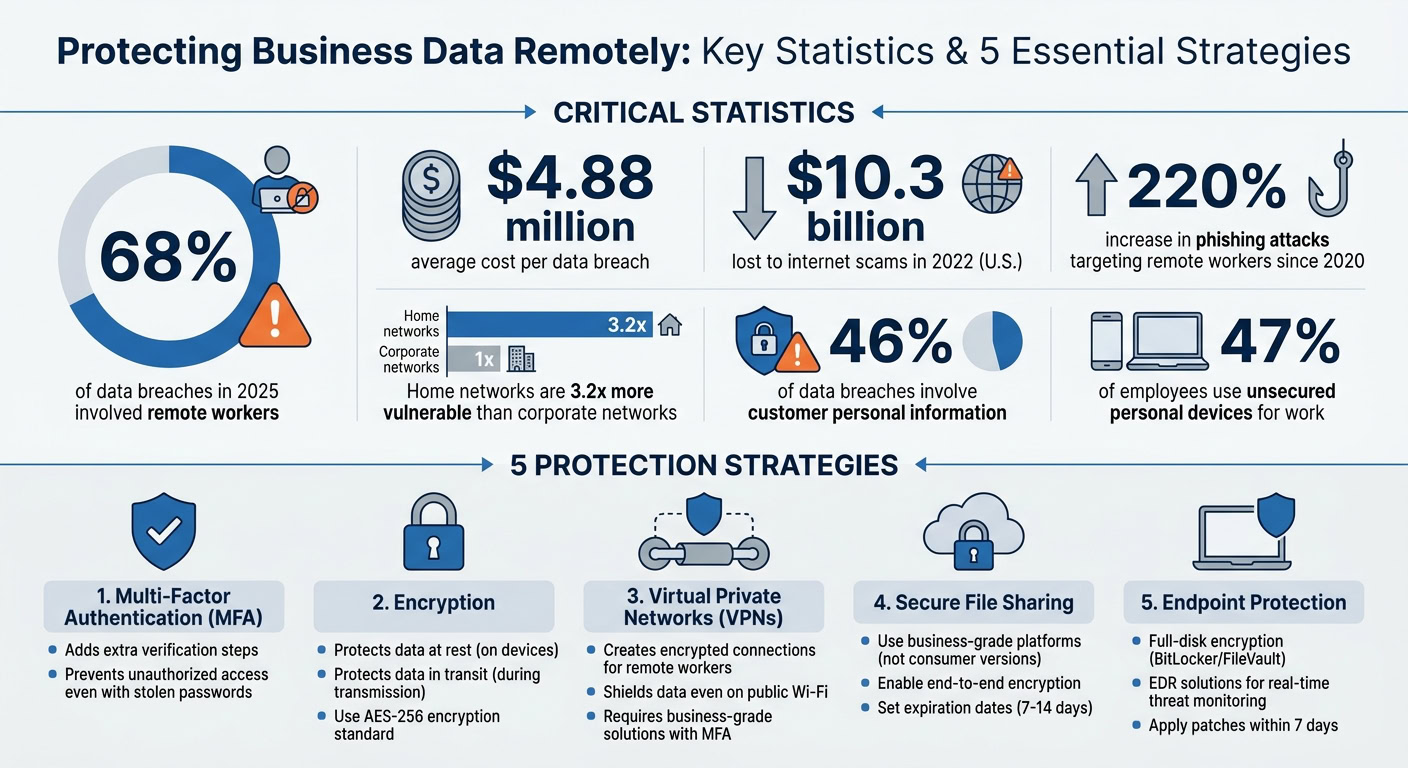
Remote work has drastically changed how businesses handle data security. With more employees working outside traditional office environments, risks like phishing attacks, unsecured networks, and personal devices accessing sensitive data have surged. 68% of data breaches in 2025 involved remote workers, costing an average of $4.88 million per breach. This article outlines five key strategies to safeguard your business data:
- Multi-Factor Authentication (MFA): Adds extra verification steps to prevent unauthorized access.
- Encryption: Protects data at rest (on devices) and in transit (during transmission).
- Virtual Private Networks (VPNs): Creates secure, encrypted connections for remote workers.
- Secure File Sharing: Reduces risks from email attachments and public links.
- Endpoint Protection: Secures devices and networks with tools like disk encryption and threat detection.
1. Set Up Multi-Factor Authentication (MFA)
Multi-Factor Authentication (MFA) adds an extra layer of security by requiring two or more verification methods – something you know (like a password), something you have (a one-time code), or something you are (biometrics). For remote businesses, this is essential. Even if someone manages to steal credentials through phishing or a breach, the additional verification step can stop unauthorized access. Considering that internet scams cost U.S. businesses and individuals $10.3 billion in 2022, and 46% of data breaches involve customer personal information, MFA acts as a strong defense against compromised accounts.
1.1 Why Remote Businesses Need MFA
Remote teams often connect through unsecured networks or use personal devices, making them more vulnerable to attacks. Weak or stolen passwords remain one of the biggest risks for remote workforces. By implementing MFA, you ensure that stolen passwords alone won’t be enough to compromise your systems.
It’s crucial to enable MFA across all key platforms your team relies on, such as:
- Email: A frequent target for phishing attacks.
- VPNs: The gateway to your internal network.
- Cloud storage: Where sensitive business files are kept.
- Communication tools: Apps like Slack or Teams.
- CRMs: Platforms that store customer data.
Without MFA, even a single phishing email could lead to a breach that disrupts your entire business. Adding this layer of security is a must for protecting remote operations.
1.2 How to Enable MFA on Your Platforms
Most platforms make it straightforward to enable MFA through their admin settings or a centralized dashboard. Make it mandatory for all users to ensure consistent protection across your team.
For better security, use authenticator apps like Proton Pass or Google Authenticator instead of relying on SMS codes, which can be intercepted via SIM swapping or other vulnerabilities. Pair MFA with strong passwords – at least 16 characters – and manage them with a reliable password manager. Additionally, implement role-based access controls so employees only access the data they need for their specific roles. If your hardware supports it, biometric authentication can add another layer of security. For high-security environments, consider storing private authentication keys in a Trusted Platform Module (TPM).
Training your team to recognize phishing attempts is also critical. Cybersecurity awareness can prevent attackers from bypassing MFA through social engineering. Many business tools, such as BusinessAnywhere, offer centralized MFA enforcement, making it easier to manage security for remote teams.
Once MFA is in place, the next step is to focus on securing your data with strong encryption.
sbb-itb-ba0a4be
2. Encrypt Your Data at Rest and in Transit
Encryption is a cornerstone of data security. It ensures that sensitive information remains unreadable to unauthorized users, whether it’s stored or being transmitted. Encrypting data "at rest" safeguards it on devices, protecting against risks like theft or loss. Meanwhile, encrypting data "in transit" shields it from interception as it moves across networks.
"The network perimeter no longer exists. Modern remote work security requires a zero-trust approach: verify every user, validate every device, and encrypt every connection – regardless of location." – Bellator Cyber
Remote work introduces additional challenges. For example, home networks are 3.2 times more vulnerable than corporate networks. Without encryption, sensitive business data could be exposed, leading to significant risks.
2.1 How to Encrypt Stored Data
To secure data at rest, start by enabling full-disk encryption (FDE) on all devices. Here’s how:
- Windows: Use BitLocker.
- macOS: Activate FileVault.
- Linux: Implement LUKS.
These tools make the entire hard drive inaccessible without the correct password or recovery key. Make sure recovery codes are stored securely in a separate location.
For cloud storage, prioritize platforms offering end-to-end or zero-knowledge encryption. Avoid basic consumer accounts that don’t provide centralized admin controls or audit logs. Additionally, use secure deletion tools to overwrite original files, ensuring no recoverable traces remain.
2.2 How to Encrypt Data During Transmission
Protecting data in transit calls for multiple layers of encryption. Start with a business-grade VPN that uses AES-256 encryption for connections to corporate resources. To prevent accidental exposure, enable the VPN’s kill switch feature, which blocks internet access if the connection drops.
Other steps include:
- Ensuring all web traffic uses HTTPS.
- Using secure protocols like SFTP or FTPS for file transfers instead of unencrypted FTP.
- Encrypting sensitive emails with tools like S/MIME or PGP, especially in regulated industries.
Home Wi-Fi security is equally important. Employees should use WPA3 (or at least WPA2) encryption and set unique passwords with at least 20 characters. For communication, choose platforms offering end-to-end encryption, such as Signal or Microsoft Teams with E2EE enabled.
"Protecting data in transit is one of the most important security aspects to consider when using mobile devices. Attackers with access to unprotected data… may be able to intercept and modify data, potentially causing harm." – National Cyber Security Centre (NCSC)
Once encryption is in place, the next step is to secure network access, completing your remote security strategy.
3. Set Up a Virtual Private Network (VPN)
A VPN establishes an encrypted connection between remote devices and your business network, acting as a protective tunnel that keeps sensitive data safe from interception. Think of it as a secure passageway for your business information, shielding connections even when employees use public Wi-Fi. With the rise of remote work, this layer of protection has become crucial to counter growing cyber threats and prevent business identity theft.
Unlike consumer VPNs, which are often geared toward bypassing geo-restrictions for streaming, business-grade VPNs are tailored to extend your office network securely to remote workers. These solutions verify user identities with credentials and multi-factor authentication (MFA) while limiting access based on user roles. This means even if a user’s credentials are compromised, the damage is contained. Below, we’ll break down how VPNs safeguard remote data and how to effectively deploy one for your business.
3.1 How VPNs Protect Remote Business Data
The encryption provided by a VPN ensures that intercepted data is useless to attackers. For example, when an employee connects using AES-256 encryption, their data becomes unreadable to anyone attempting to spy on the connection – whether it’s a hacker on public Wi-Fi or malicious software on a shared home router.
Beyond encryption, business VPNs offer granular access controls. Role-based access ensures employees only see what they need. For instance, marketing staff won’t accidentally stumble upon financial records, and contractors can access only the files relevant to their projects.
Another critical function is securing Remote Desktop Protocol (RDP) sessions. RDP is a common entry point for ransomware attacks when left exposed to the internet. By funneling RDP traffic through a VPN, businesses can keep these sessions hidden from public exposure, reducing the risk of exploitation. Additionally, for industries that handle regulated data, VPNs help meet encryption compliance standards like GDPR, HIPAA, and PCI DSS.
3.2 How to Deploy a VPN for Your Business
To get started, choose a business-grade VPN solution – consumer VPNs simply won’t cut it. Look for features like AES-256 encryption, MFA, and centralized management tools. Ensure the VPN integrates with your existing identity provider to enable single sign-on (SSO).
Here’s a step-by-step guide to implementation:
| Step | Action | Key Requirement |
|---|---|---|
| 1. Selection | Choose a business-grade VPN | Must support AES-256 encryption and MFA |
| 2. Gateway Setup | Deploy the VPN server or enable it on your firewall | Define protocols like IPsec or OpenVPN |
| 3. Access Configuration | Set up MFA and assign role-based access | Apply least-privilege principles |
| 4. Client Deployment | Install VPN software on all devices | Use Mobile Device Management (MDM) for consistency |
| 5. Monitoring | Enable logging for connections | Watch for failed logins and unusual activity |
For added security, enforce an Always-On VPN policy. This ensures employees are protected the moment they connect to the internet, even before accessing sensitive files. Additionally, a kill switch can prevent accidental data leaks by blocking all internet traffic if the VPN connection drops.
For performance, consider WireGuard, known for its speed and efficiency, or OpenVPN, a trusted option compatible with most platforms. If employees frequently work from restrictive networks like hotel Wi-Fi, SSTP is a good choice since it uses port 443 to bypass most firewalls.
You might also enable split tunneling, which routes only business-related traffic through the VPN while allowing personal browsing to bypass it. This reduces network congestion and improves performance for activities like video calls and cloud-based collaboration. Just be sure to define which applications must use the VPN tunnel.
Finally, make it a habit to review VPN logs weekly. Look for failed logins or connections from unexpected locations – these can be warning signs of unauthorized access attempts. Keep server firmware and client software up to date, ideally within seven days of any security patch, to protect against known vulnerabilities.
4. Create Secure File Sharing Processes
Even with a VPN shielding your network traffic, careless file-sharing practices can leave your data exposed. Email attachments and public links are prime targets for attackers. Since 2020, phishing attacks aimed at remote workers have jumped by 220%, highlighting the need for secure file-sharing methods.
Opt for business-grade platforms like Microsoft OneDrive, Google Drive, or Dropbox Business instead of their consumer counterparts. These versions typically offer centralized administrative controls, detailed audit logs, and Data Loss Prevention (DLP) tools – features often missing in personal accounts. Prioritize platforms with end-to-end encryption (E2EE) and zero-knowledge architecture, ensuring that even the service provider cannot access your files or encryption keys.
4.1 How to Choose Encrypted File-Sharing Tools
When selecting a file-sharing platform, implement Role-Based Access Control (RBAC) to limit access based on user roles. For instance, this ensures that marketing staff can’t inadvertently access sensitive financial data or that contractors only see files relevant to their projects.
Ensure the platform includes DLP features to catch and block accidental or unauthorized sharing of sensitive data. These tools can scan for patterns like Social Security numbers, credit card information, or confidential client data and stop such files from being shared.
| Feature | Consumer Version | Business-Grade Version |
|---|---|---|
| Admin Control | Limited or none | Centralized user management and policy enforcement |
| Audit Logs | Basic or unavailable | Detailed logs of all file access and modifications |
| Data Loss Prevention | Not included | Automated tools to prevent sharing sensitive data |
| Compliance | Often lacks SOC 2/HIPAA certifications | Meets regulatory standards (e.g., GDPR, HIPAA) |
| Security | Basic encryption | End-to-end encryption and advanced threat scanning |
Avoid using email attachments altogether. Instead, upload files to encrypted cloud storage and share time-limited, password-protected links. This method keeps your data in a controlled environment, allowing you to monitor access and revoke permissions instantly if necessary.
Once you’ve selected secure file-sharing tools, the next step is to tighten access and encryption key management.
4.2 How to Manage Access Controls and Encryption Keys
Set shared documents to "view only" access by default. Grant editing or downloading permissions sparingly and only when absolutely necessary. This approach minimizes risks like unauthorized data leaks or accidental changes.
Disable "anyone with the link" sharing settings across your organization. Require user authentication with MFA for all cloud storage accounts to prevent unauthorized access.
Use business-grade password managers like 1Password, Bitwarden, or Secret Server by Delinea to manage encryption keys. These tools should be protected with MFA and configured with RBAC to restrict access based on job roles. Additionally, enable full-disk encryption on all remote devices – BitLocker for Windows or FileVault for Mac – to secure locally stored keys.
Always set expiration dates for external sharing links, typically 7–14 days depending on the project timeline. Conduct monthly reviews of shared folder permissions, removing access for former employees or team members who no longer need it. For added security, create client-specific folders with unique access rules to prevent mixing projects or unintentionally exposing one client’s data to another.
Check audit logs weekly to monitor file activity. Look out for unusual patterns, such as large file transfers during off-hours or access from unexpected locations – these could indicate compromised credentials or insider threats.
5. Protect Remote Access Points and Devices
Even the best network protocols can fall short if endpoints are left exposed. Home networks are 3.2 times more vulnerable than corporate networks, which significantly increases the potential attack surface.
To address this, a Zero Trust Architecture is essential. This approach verifies every user, validates every device, and encrypts every connection. While encrypted communications and secure networks are critical, safeguarding endpoints is just as important for a solid remote security strategy.
Use tools like full-disk encryption (e.g., BitLocker or FileVault) and Endpoint Detection and Response (EDR) solutions such as CrowdStrike or SentinelOne to monitor for threats in real time. Unlike traditional antivirus programs, EDR systems can detect ransomware attempts, unusual file activity, or credential theft as they happen. Pair these with Mobile Device Management (MDM) tools to enforce security updates, apply policies, and remotely wipe data when necessary.
5.1 Device Security for Remote Teams
Securing data in transit and storage starts with ensuring devices are protected. Here’s how company-owned devices and personal devices (BYOD) stack up:
| Feature | Company-Owned Devices | BYOD (Personal Devices) |
|---|---|---|
| Encryption | Fully controlled via MDM | Limited to user compliance |
| Software Updates | Automated and enforced | Often delayed |
| Endpoint Protection | Centrally managed EDR | May conflict with personal antivirus |
| Remote Wipe | Entire device wipe | Only wipes business data; may fail |
| Incident Response | Full forensic access | Limited due to privacy concerns |
While company-owned devices require an upfront investment, this is minor compared to the average $4.88 million cost of a data breach. On the other hand, personal devices might save on hardware costs but introduce higher risks – 47% of employees use unsecured personal devices for work.
To enhance device security:
- Apply patches within 7 days to fix known vulnerabilities.
- Set devices to lock automatically after 2 minutes of inactivity.
- Disable USB auto-run features to prevent malware spread.
For home networks, update router admin credentials, enable WPA3 (or WPA2), and disable UPnP and WPS. Create a separate guest network for business devices to isolate them from IoT gadgets. Additionally, configure VPNs with "always-on" and "kill switch" features to prevent unencrypted data transmission.
5.2 How to Set Up Backup and Recovery Systems
Even with strong endpoint defenses, backup and recovery systems are critical as a safety net.
Automated, encrypted cloud backups ensure data stays up-to-date without relying on manual intervention. Choose systems with versioning capabilities so you can restore files to a pre-ransomware state if needed. For added security, encrypt backup data at rest with AES-256 encryption.
For physical backups like external drives, store them securely in locked cabinets with restricted access. When disposing of old devices or storage media, use secure wiping software to overwrite data multiple times, making it unrecoverable.
To ensure your recovery plan works:
- Test recovery procedures quarterly to confirm data can be restored quickly and completely.
- Develop an Incident Response Plan (IRP) for remote scenarios. This should include steps for isolating compromised devices, preserving evidence, and using alternative communication channels (like Signal or personal phones) if primary systems are compromised.
Encourage employees to report lost or compromised devices immediately. Prompt reporting helps minimize risks. Use MDM tools to remotely wipe business data from lost devices and maintain central logs to track network activity and identify compromised systems during an incident.
Conclusion
With 68% of data breaches involving remote workers and home networks posing 3.2 times higher security risks, protecting sensitive information has never been more critical for remote operations. Considering the average breach costs a staggering $4.88 million, and phishing attacks targeting remote teams have increased by 220% since 2020, the stakes are incredibly high.
The strategies outlined here work together to create multiple layers of protection. Multi-factor authentication ensures only verified users gain access, VPNs secure data during transmission, encryption protects information stored on devices, and endpoint security defends against malware and unauthorized access. Together, these tools form a robust, centralized security framework that validates every user, device, and connection – no matter where they’re located.
For remote business owners, centralized solutions can simplify these challenges. Platforms like BusinessAnywhere consolidate essential business functions into one secure dashboard. From business registration and registered agent services to virtual mailbox services with encrypted document scanning, these tools reduce vulnerabilities by handling sensitive legal and financial documents through secure, authenticated channels rather than unsecured home addresses. Additional services like remote online notary and compliance support further enhance privacy while keeping your operations fully remote and accessible 24/7.
Strong security measures do more than just prevent breaches – they protect your reputation, ensure compliance, and build trust with clients. By implementing these strategies and leveraging secure platforms like BusinessAnywhere, you can create a resilient foundation for your remote business to thrive.
FAQs
What should I secure first for a remote team?
The first step in protecting a remote team is to establish strong access controls and authentication protocols. Multi-factor authentication (MFA) is a must – it adds an extra layer of security to ensure that only authorized individuals can access your company’s systems.
On top of that, setting up a VPN (Virtual Private Network) is essential. A VPN encrypts data as it travels across the internet, keeping sensitive information safe and securing remote connections.
By prioritizing these measures, you lay the groundwork for safeguarding your team’s data and preventing unauthorized access.
Do remote workers still need a VPN if we use HTTPS apps?
Remote workers often still need a VPN, even when using HTTPS apps. While HTTPS encrypts data during specific app sessions, a VPN goes further by securing all internet traffic from the device. This added layer of security is especially crucial on public or untrusted networks. It helps protect sensitive business data from interception and ensures safer access to internal resources, email, and file-sharing platforms.
How can I share files with clients securely without email attachments?
To share files securely without relying on email attachments, consider using encrypted file-sharing platforms. These platforms offer encryption, access controls, and additional features like password protection and link expiration to safeguard your files from unauthorized access.
How to Share Files Securely:
- Upload your files: Use a secure platform that encrypts your data during storage and transfer.
- Set access restrictions: Apply permissions, such as adding a password or setting a link expiration date, to control who can view or download the files.
- Share the link safely: Send the link through a secure communication channel, like an encrypted messaging app.
- Verify access: Confirm that the recipient can access the files, and if the platform allows, monitor any activity related to your shared content.
This approach ensures your files remain protected while reaching the intended recipient.